1-Click Upsells
Last updated: August 6, 2025
Pro tip: Make sure the upsell product is created prior to following these steps!
Setting Up 1-Click Upsells
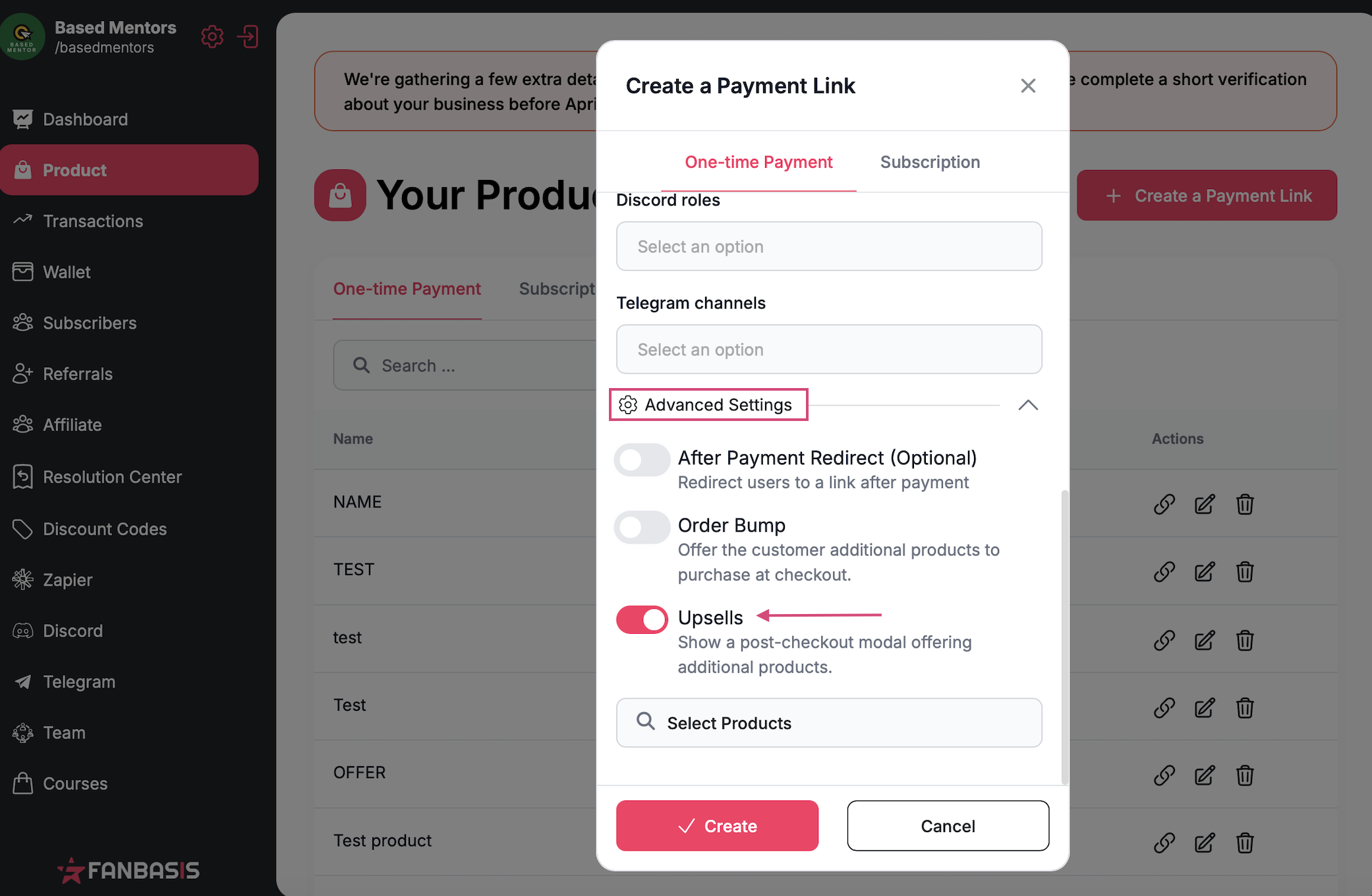
Step 1: Create a Payment Link & Enable Upsells
Create a payment link for the product you want to promote.
Go to the Advanced Settings section.
Toggle on Upsells to activate the upsell option for your payment link.
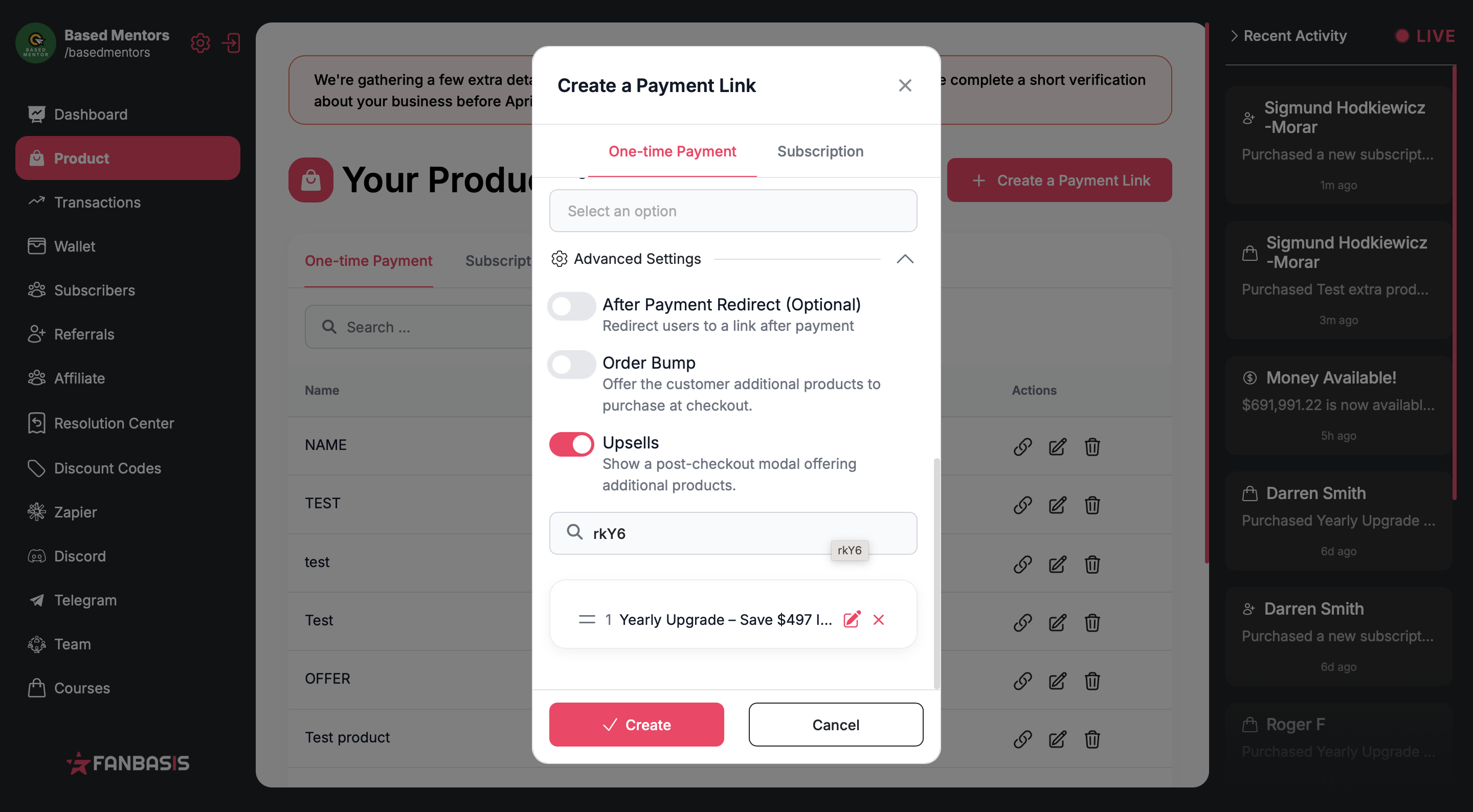
Step 2: Choose a Product
Select the product you want to reflect on the upsell page.
Click Create to continue.
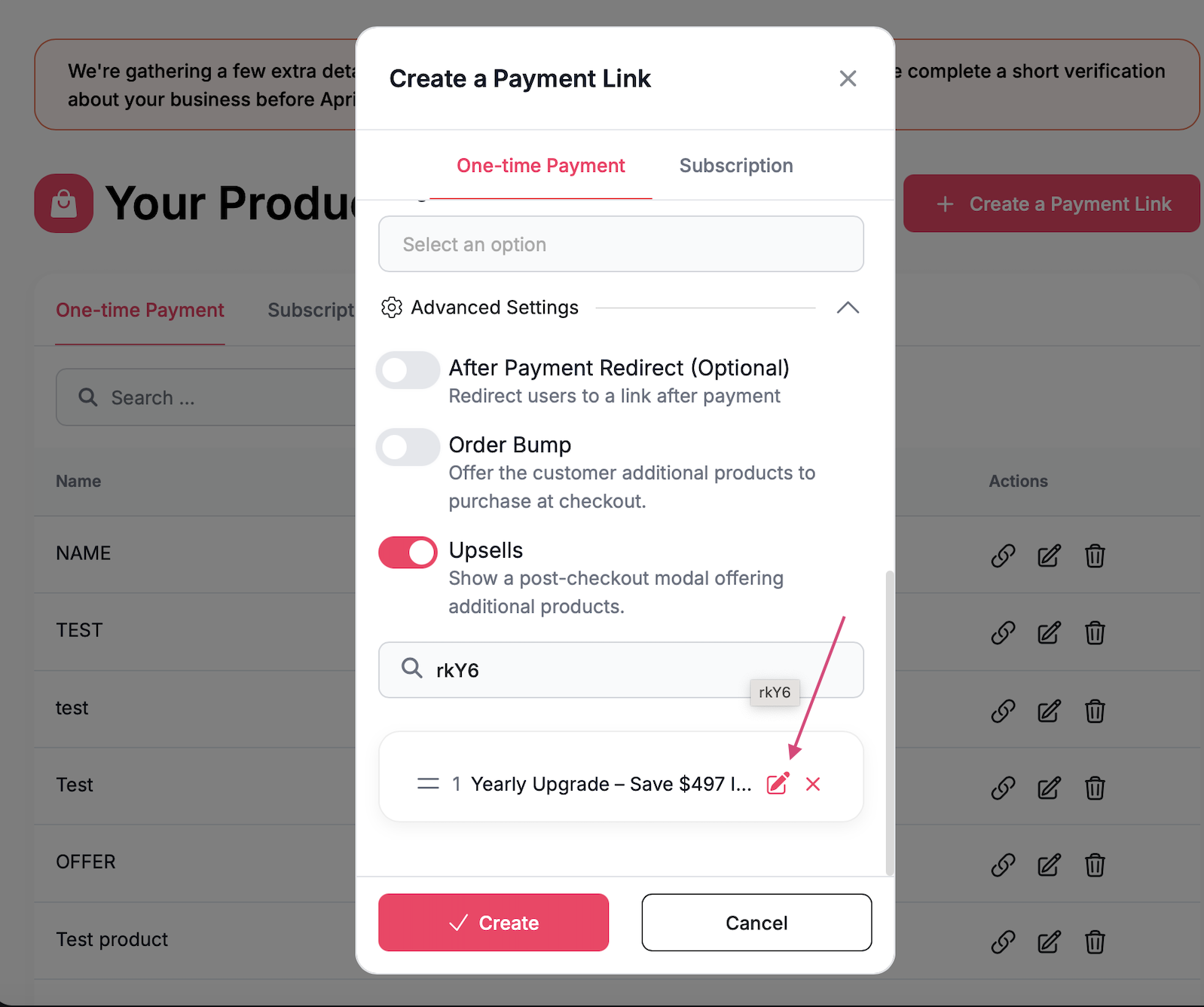
Step 3: Customize Your Upsell Page
Click the pencil icon next to your product to customize the Upsell Page.
You can edit:
Colors
Text
Buttons
Layout and overall messaging
This helps you tailor the experience to your brand and audience!
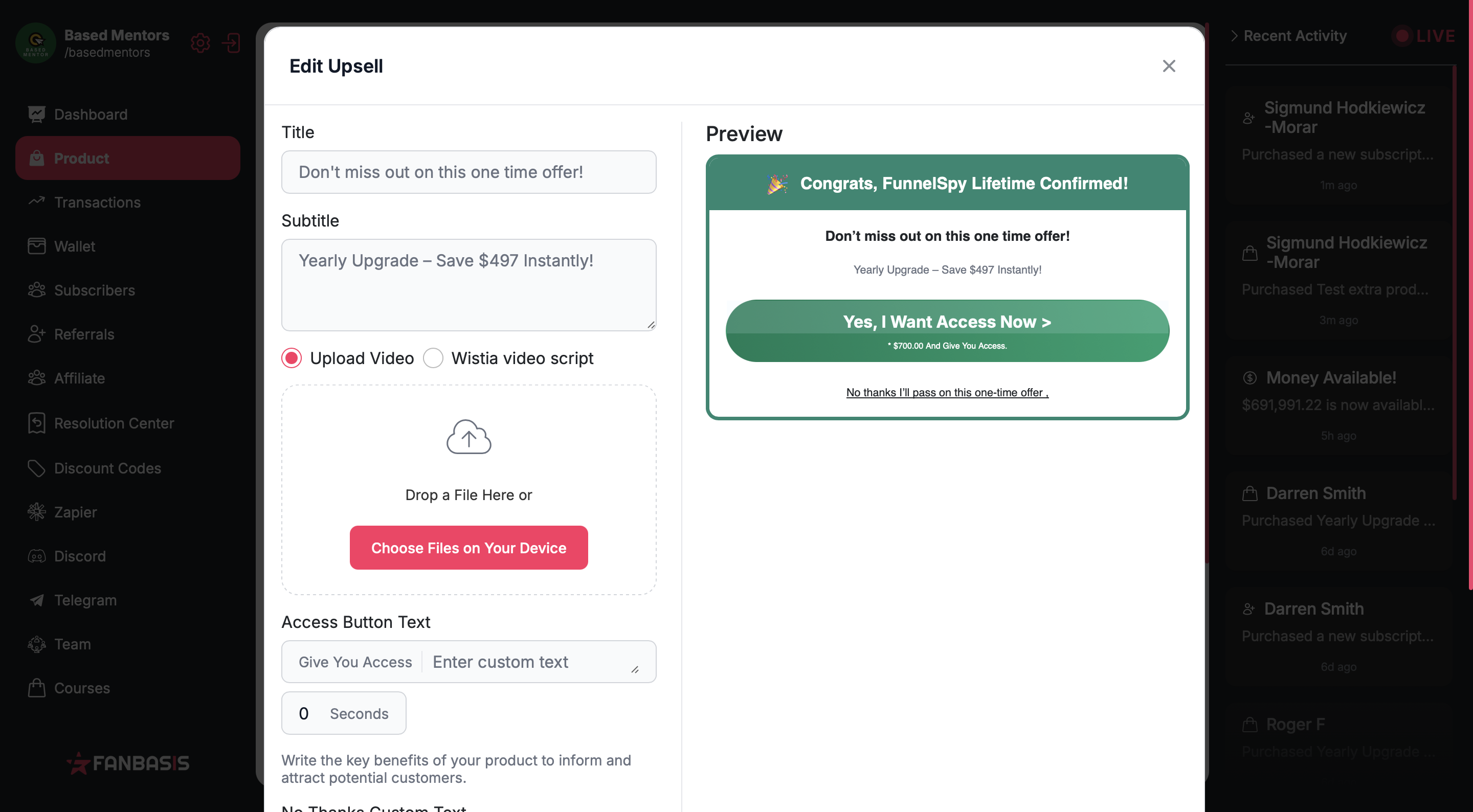
What Your Customer Sees
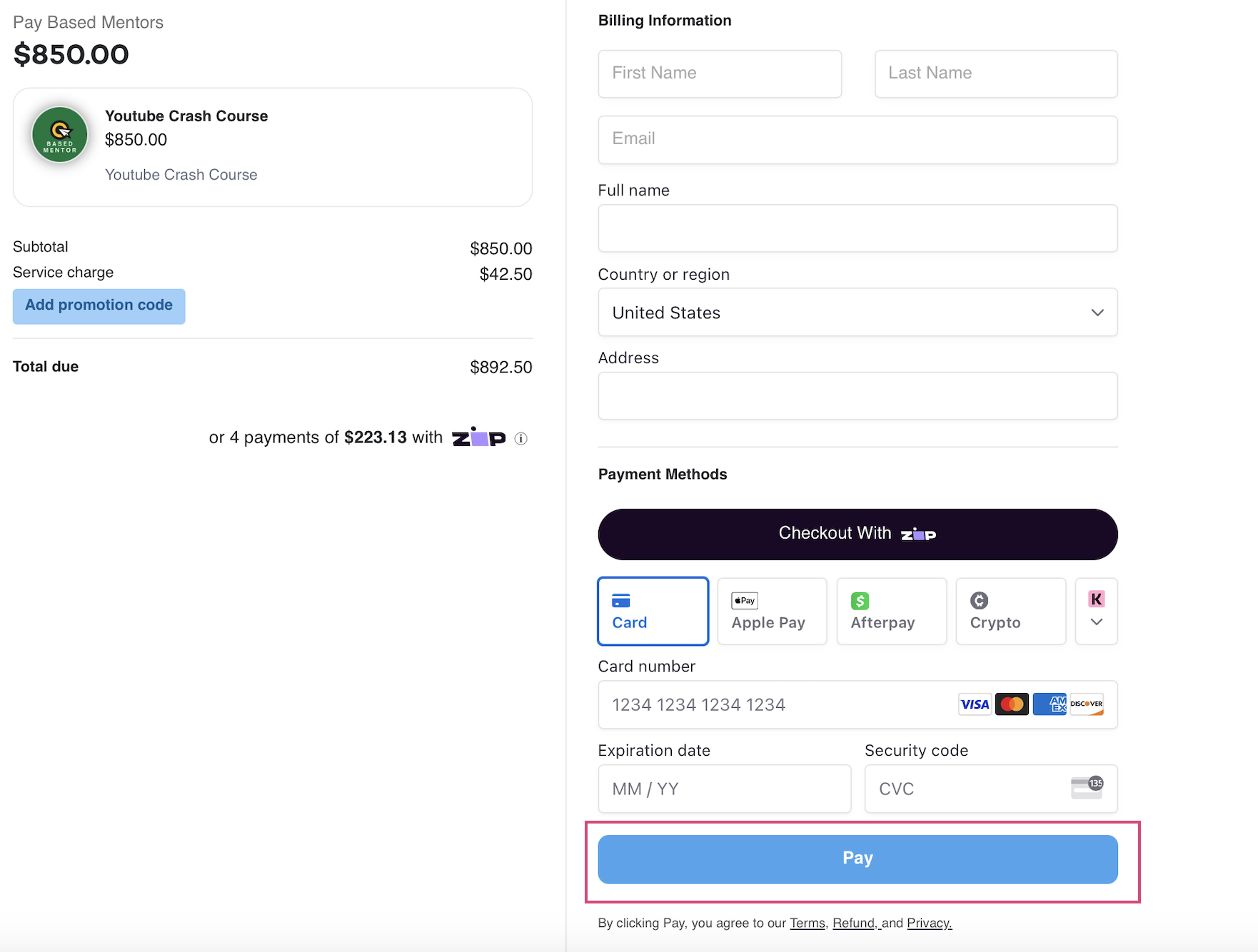
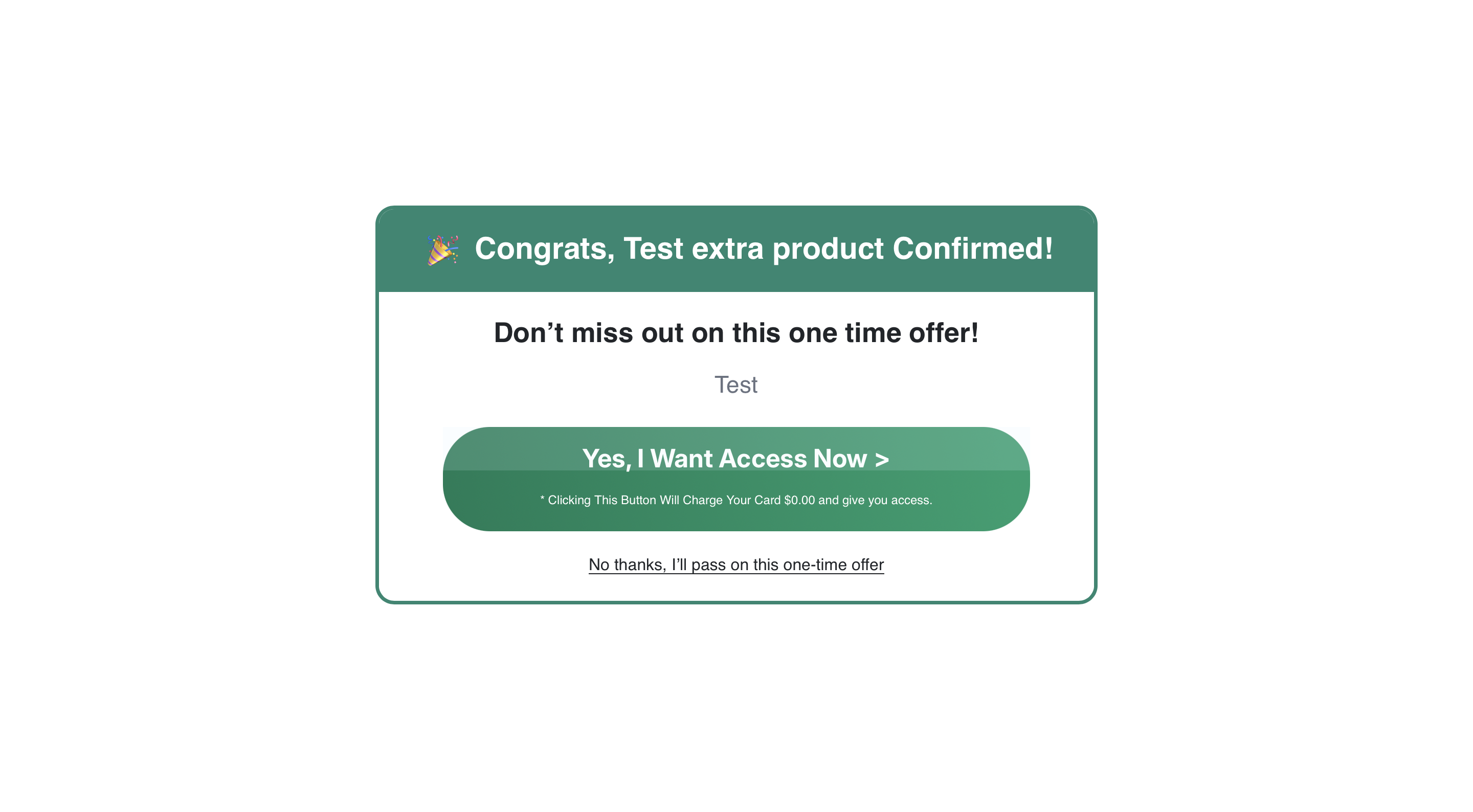
After completing checkout and clicking “Pay”, your customer will be automatically redirected to the Upsell Page.
They’ll see your additional offer and can choose to accept it.
That’s It!
Your upsell is now live and ready to help increase your revenue!