Cancelling Subscriptions
Last updated: August 5, 2025
How to Cancel a Customer’s Subscription
To cancel a subscription on behalf of a customer:
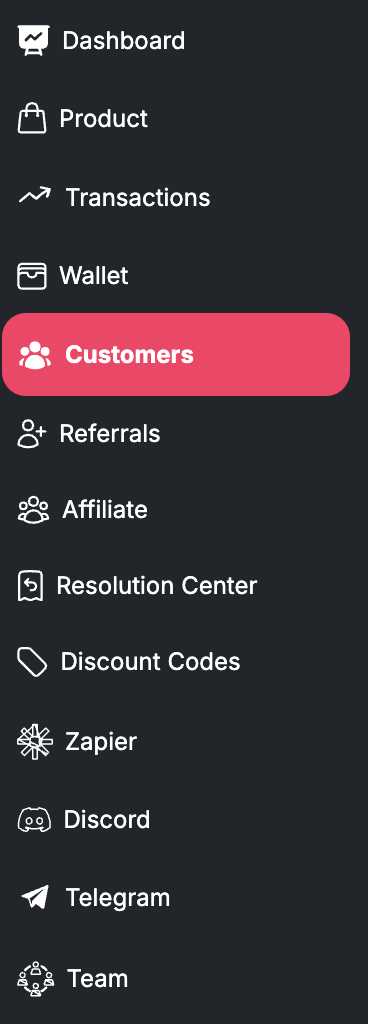
From your dashboard, click on the Customers tab.
Select the Subscriptions section.
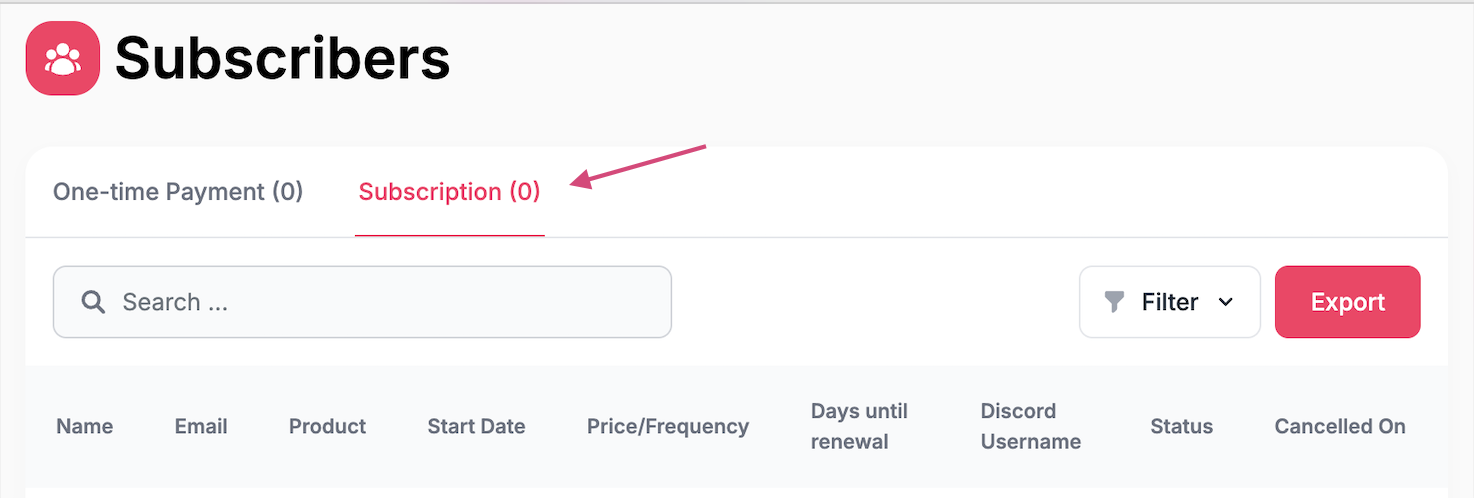
Use the search bar to find the customer by name or email.
Hover over the trash can icon next to their subscription.

Click the trash can icon to cancel.
⚠ This will immediately stop all future billing for that subscription.
Best Practices: Set Clear Expectations with a Cancellation Policy
Before canceling, it’s a good idea to have a clear and visible cancellation policy in place. This helps manage customer expectations and reduce disputes. Consider including:
Required notice period (e.g., 24–48 hours before the next billing cycle)
Whether partial refunds are offered for mid-cycle cancellations
How customers will be notified once cancellation is processed
Having these terms outlined on your checkout page or in your terms of service builds trust and minimizes confusion.